onechipbook wifi and GEOBENCH
Photos#
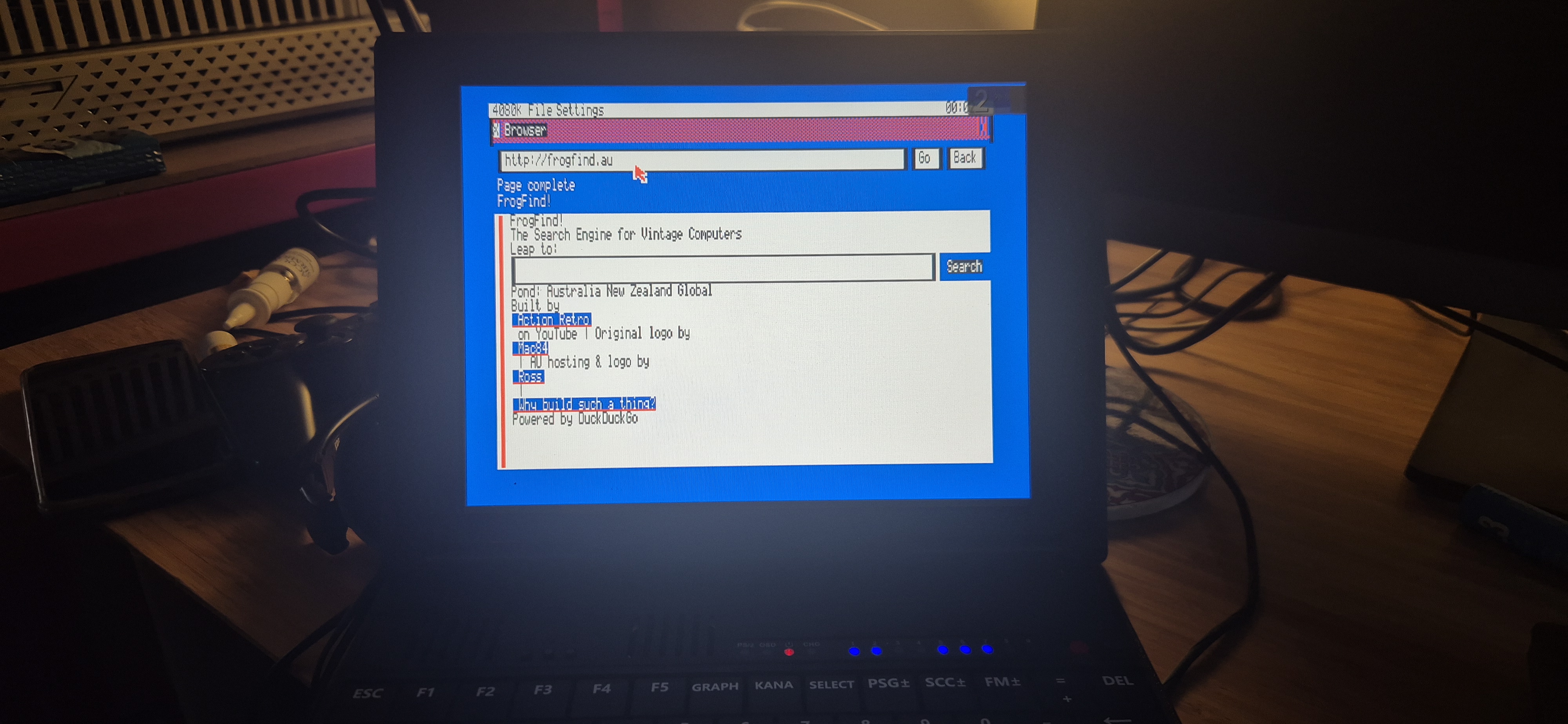 GEOBENCH browser
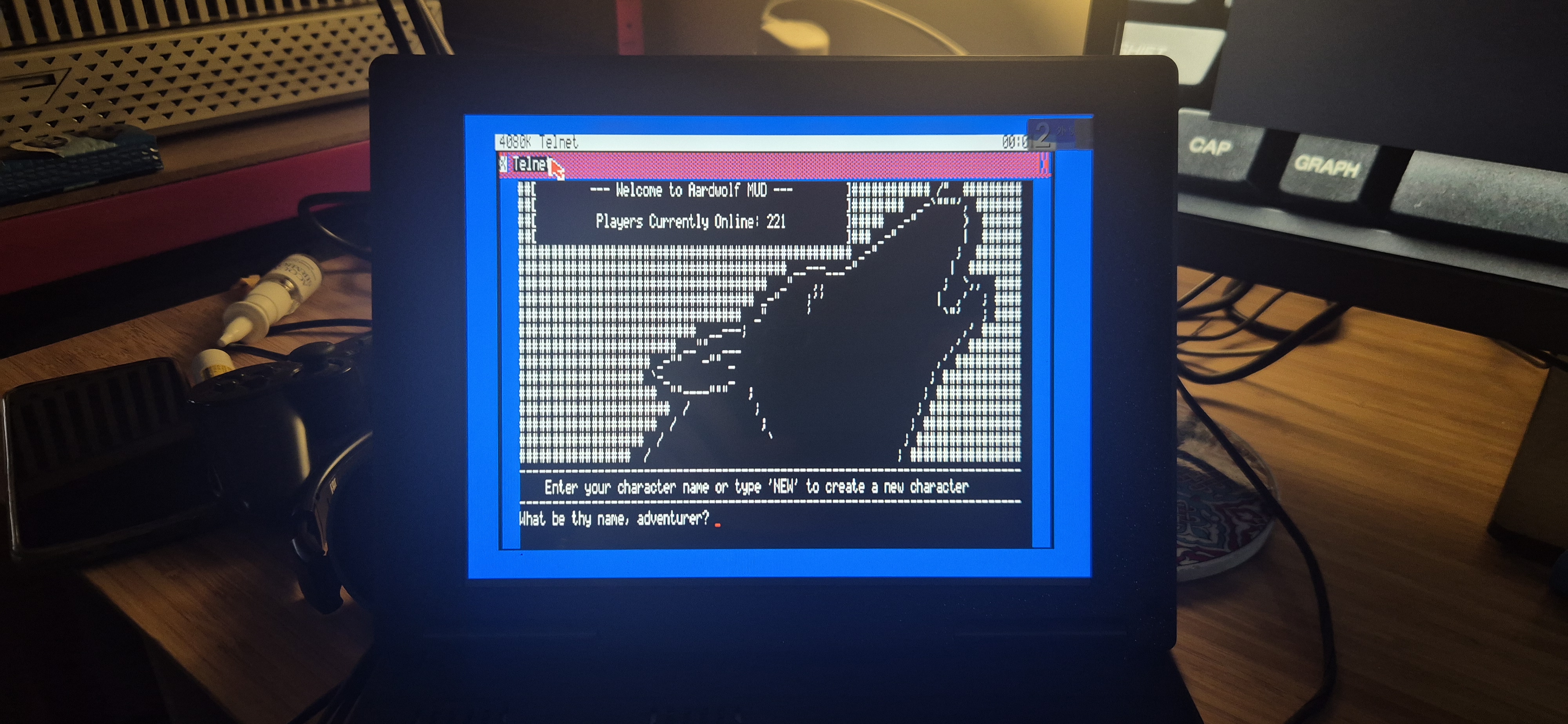 GEOBENCH telnet
I recently updated the ESP-01S Wi-Fi module inside my OneChipBook. The firmware and tools I used came from the links in Oduvaldo Pavan Junior’s YouTube video:
The package included Espressif’s Windows Flash Download Tool, but I did not use it in the end. The current .exe did not run correctly on my Windows 7 machine, so I flashed the ESP-01S directly from Linux using Espressif’s command-line tool, esptool.py.
You will also need the correct firmware from here, as the one in the video has a problem where it won’t save the WiFi settings:
Opening the OneChipBook#
To access the ESP-01S module, the OneChipBook has to be opened from the bottom.
There are several screws on the underside of the machine. Most of them are hidden under the laptop’s rubber feet, so the feet need to be removed first. After the screws are out, the bottom shell can be opened carefully.
The ESP-01S module is easy to identify once inside. There is only one practical way it can be plugged in: the module covers the connector next to it, and it cannot realistically be inserted backwards because it would stick out into the cartridge insertion area.
Checking the ESP8266#
With the ESP-01S connected to a USB programmer in PROG mode, I first checked that the chip was detected:
sudo python3 -m esptool --chip esp8266 --port /dev/ttyUSB0 chip_id
This reported an ESP8266EX with a 26 MHz crystal:
Chip type:          ESP8266EX
Crystal frequency:  26MHz
Backing Up the Original Firmware#
Before writing anything, I made a full backup of the original 1 MB flash:
sudo python3 -m esptool \
  --chip esp8266 \
  --port /dev/ttyUSB0 \
  --baud 115200 \
  read_flash 0x00000 0x100000 esp01s-backup.bin
The resulting backup file should be exactly 1,048,576 bytes.
Flashing the New Firmware#
The firmware package had two binary files:
- fw.bin at offset 0x00000
- certs.bin at offset 0x0bb000
The required flash settings were:
- Crystal frequency: 26M
- SPI speed: 40 MHz
- SPI mode: QIO
- Flash size: 8 Mbit, which is 1 MB
The final flashing command was:
sudo python3 -m esptool \
  --chip esp8266 \
  --port /dev/ttyUSB0 \
  --baud 115200 \
  write-flash \
  --flash-freq 40m \
  --flash-mode qio \
  --flash-size 1MB \
  0x00000 fw.bin \
  0x0bb000 certs.bin
After flashing, I switched the programmer back from PROG mode to UART mode and reinstalled the ESP-01S in the OneChipBook.
Prepare SDCARD#
You need to copy all the files in the “OCM-SM.UNAPI.PACK.1.5/TO SDCARD ROOT (RAIZ CARTAO SD) RAM” folder to the root of your SDCARD (Format it to FAT16 first) and of course, you will need to already have the necessary files to boot MSXDOS in it
First Boot#
After powering on the OneChipBook, I saw several messages indicating that the ESP8266 firmware was being loaded.
At first I could not find where the Wi-Fi configuration was supposed to be set. The useful tool turned out to be:
CFG8266.COM
Running CFG8266.COM scans for nearby Wi-Fi access points and allows the OneChipBook to connect to one. You may want to also adjust the time server and timezone to reflect your area in AUTOEXE2.BAT
Testing UNAPI Networking#
I also tested GEOBENCH’s newly finished UNAPI compatibility. It worked out of the box.
Using GEOBENCH’s browser, I was able to browse to:
I was also able to telnet to Aardwolf using the Telnet app:
GEOBENCH project links:
This confirmed that the flashed ESP-01S firmware, the OneChipBook Wi-Fi interface, and the UNAPI networking stack were all working together successfully.